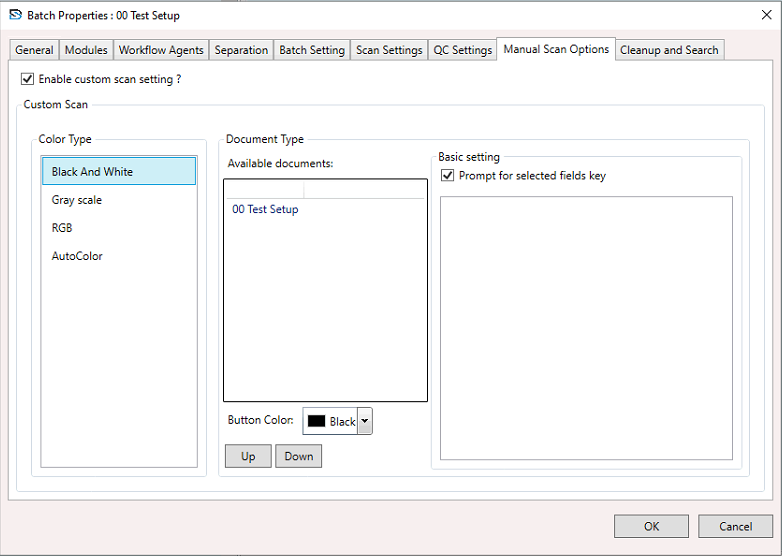
Batch Setup Properties – Manual Scan Options
This page covers the Manual Scan Options entry, which now configures the Custom Scan experience used in the Scan module.
- Select a Batch Setup, right-click to open the context menu, and choose Batch Setup Properties.
- The Batch Setup Properties window appears.
- In the window, select the Manual Scan Options section and configure the settings below.
Enable Custom Scan
- Tick this box to activate the Custom Scan configuration and publish custom scan buttons to the Scan module.
- If unchecked, the colour list, document list, and prompt settings are disabled.
Color Type
Choose which colour buttons are available in Custom Scan:
- Black And White – Adds monochrome custom scan buttons.
- Grayscale – Adds grey-tone custom scan buttons.
- RGB – Adds full-colour custom scan buttons.
- AutoColor – Adds buttons that let the scanner decide the best colour mode automatically.
Document Type
- Displays document and form pairs in the format Document : Form for custom scanning.
- Only single-form documents are suitable; if a document has multiple form types the admin page shows a warning and it should be simplified before using Manual Scan.
Button Color
- Choose a button colour to visually distinguish the selected document/form button on the Custom Scan tab.
Up / Down Buttons
- Used to reorder the document/form buttons; the same order appears in the Scan module.
Basic Settings
Prompt for Selected Fields Key
- When checked, the Scan module prompts the operator for only the selected index fields during custom scanning.
Index Fields
Below is a list of index fields across the selected document types. Choose which fields to prompt for when Prompt for Selected Fields Key is enabled:
- OrialID
- ClientName
- ReturnReason (checked in the image)