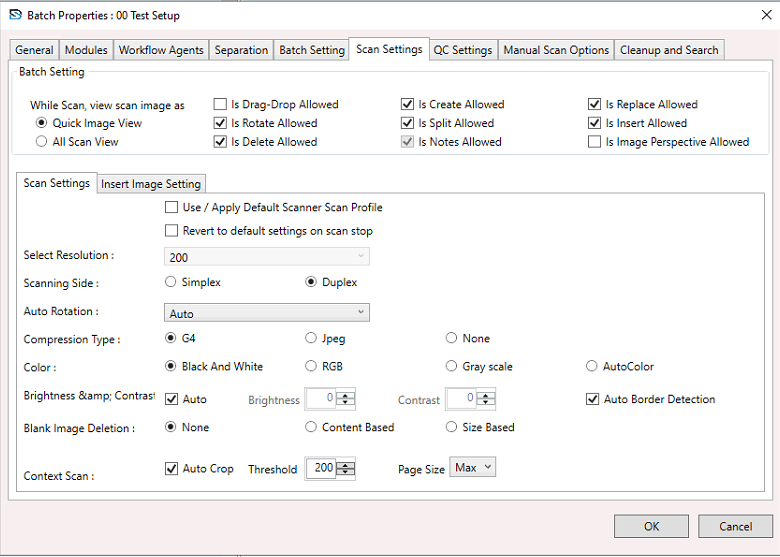
Batch Setup Properties – Scan Settings
When configuring a Batch Setup, you can adjust scan-related permissions, import permissions, and profile behaviour to control the scanning workflow.
To configure Scan Settings:
- Select a Batch Setup, right-click to open the context menu, and choose Batch Setup Properties.
- The Batch Setup Properties window appears.
- In the window, select the Scan Settings section and configure the settings below.
General Scan Permissions
These checkboxes control what actions are allowed during scanning and import:
While Scan, View Scan Image As
- Quick Image View or All Scan View.
Is Drag-Drop Allowed
- Allow drag and drop of scanned images.
Is Create Allowed
- Allow creation of new documents.
Is Replace Allowed
- Allow replacement of scanned images.
Is Rotate Allowed
- Allow image rotation.
Is Split Allowed
- Allow splitting of documents.
Is Insert Allowed
- Allow inserting pages.
Is Delete Allowed
- Allow image deletion.
Is Notes Allowed
- Allow document and page notes where the scan client exposes notes.
Is Image Perspective Allowed
- Allow perspective correction. Related import permissions also include Skip Compression and IIQ Image Import.
Scan Settings Section
- Use / Apply Default Scanner Scan Profile – Loads the saved scanner profile and disables the manual scan-profile controls on this page.
- Revert to default settings on scan stop – Reapplies the stored defaults after the operator stops scanning.
Image and Scanner Configuration
- Select Resolution: choose the scan DPI used by the batch.
- Scanning Side: Simplex or Duplex.
- Auto Rotation Options: None, Auto, Rotate 90, Rotate 180, Rotate 270, Auto Default 90, Auto Default 180, Auto Default 270.
- Compression Type: G4 (default), Jpeg, or None.
- Color Mode: Black & White, RGB, Grayscale, or AutoColor.
- Brightness & Contrast: Auto or manual values.
- Auto Border Detection works with image perspective correction when enabled.
- Blank Image Deletion: None, Content Based, or Size Based.
Context Scan Options
- Auto Crop for context and large-format scans.
- Threshold: default 200, enabled only when Auto Crop is selected.
- Page Size: Max, A0, A1, A2, A3, A4, A5, or A6.
How It Works
- When Apply Default Scanner Scan Profile is enabled, the saved profile is used instead of the manual controls.
- Images are scanned with the selected resolution, colour, rotation, and simplex or duplex settings.
- Blank pages can be removed automatically, and imported files can keep original compression when Skip Compression is allowed.
- Auto crop, threshold, page size, and border detection refine image quality for context scans.
- IIQ image import can be enabled for supported raw files in addition to standard scan and import actions.
- Settings reset after Scan Stop when Revert to default settings is enabled.